Pages

Showing posts with label TIPS N TRICKS. Show all posts

Friday, 12 October 2012

root android device

What is “Root”?

Android is based on Linux. On Linux and other UNIX-like operating systems, the root user is equivalent to the Administrator user on Windows. The root user has access to the entire operating system and can do anything. By default, you don’t have root access to your Android device, and certain apps won’t function without root access.
With root access, you can disable the bloatware that comes with your phone, manually deny app permissions, run a firewall, access the entire file system, or tether your device, even if tethering functionality has been disabled. You’ll find many apps that require root access in the Google Play store (formerly known as the Android Market), although they won’t function until you root your device.

-Rooting doesnt have any adverse effect(if u dont do anything wrong urself)
-I hv two android devices and both are rooted. 

here i am describing one of the easiest way to root your SAMSUNG GALXY Y:

Steps Required in Rooting your Samsung Galaxy Y S5360

  1. Download the Required Root Package HERE
  2. Connect your Device Samsung Galaxy Y S5360 to the computer only via USB. (Forgot about Bluetooth)
  3. No Extraction is required. Copy the Zip file to the root of the SD card and remember not to paste in any folder as it would cause an interruption.
  4. Never Unplug your Device Samsung Galaxy Y S5360 while rooting
  5. Switch off your Smartphone to enter into recovery mode
  6. Keep pressing The Volume Up Key, Home key and Power Button  to enter the recovery mode.
  7. Now, as you are in the recovery mode only Volume up and down would work to select the file. So use those  buttons and select Update.zip .
  8. The rooting will start taking place after you have selected on Update.zip. It would usually take about 10-15 mins
  9. After rooting the device will automatically restart and then normal booting will take place. The rooting of your Phone is now done!
Congratulations! You have successfully rooted your Smartphone Samsung Galaxy Y S5360
Also Read: How to check if phone is rooted or not
 Now you can add any applications without any limitation as well as you can even install Custom ROM or Cyanogen Mod, if you wish.


Monday, 8 October 2012

What Is SEO?

Search engine optimization (SEO) is the process of improving the visibility of a website or a web page in a search engine's "natural" or un-paid ("organic" or "algorithmic") search results. In general, the earlier (or higher ranked on the search results page), and more frequently a site appears in the search results list, the more visitors it will receive from the search engine's users. SEO may target different kinds of search, including image search, local search, video search, academic search, news search and industry-specific vertical search engines.
As an Internet marketing strategy, SEO considers how search engines work, what people search for, the actual search terms or keywords typed into search engines and which search engines are preferred by their targeted audience. Optimizing a website may involve editing its content and HTML and associated coding to both increase its relevance to specific keywords and to remove barriers to the indexing activities of search engines. Promoting a site to increase the number of backlinks, or inbound links, is another SEO tactic.
The plural of the abbreviation SEO can refer to "search engine optimizers," those who provide SEO service.

Whenever you enter a query in a search engine and hit 'enter' you get a list of web results that contain that query term. Users normally tend to visit websites that are at the top of this list as they perceive those to be more relevant to the query. If you have ever wondered why some of these websites rank better than the others then you must know that it is because of a powerful web marketing technique called Search Engine Optimization (SEO).
SEO is a technique which helps search engines find and rank your site higher than the millions of other sites in response to a search query. SEO thus helps you get traffic from search engines.

The first basic truth you need to know to learn SEO is that search engines are not humans. While this might be obvious for everybody, the differences between how humans and search engines view web pages aren't. Unlike humans, search engines are text-driven. Although technology advances rapidly, search engines are far from intelligent creatures that can feel the beauty of a cool design or enjoy the sounds and movement in movies. Instead, search engines crawl the Web, looking at particular site items (mainly text) to get an idea what a site is about. This brief explanation is not the most precise because as we will see next, search engines perform several activities in order to deliver search results – crawling, indexing, processing, calculating relevancy, and retrieving.
 Search engines uses complex mathematical algorithms to guess which websites a user seeks, based in part on examination of how websites link to each other. Since website B is the recipient of numerous inbound links, B ranks highly in a web search, and will come up early in a web search. Further, since B is popular, and has an outbound link to C, C ranks highly too.

Differences Between the Major Search Engines

Although the basic principle of operation of all search engines is the same, the minor differences between them lead to major changes in results relevancy. For different search engines different factors are important. There were times, when SEO experts joked that the algorithms of Bing are intentionally made just the opposite of those of Google. While this might have a grain of truth, it is a matter of fact that the major search engines like different stuff and if you plan to conquer more than one of them, you need to optimize carefully.
There are many examples of the differences between search engines. For instance, for Yahoo! and Bing, on-page keyword factors are of primary importance, while for Google links are very, very important. Also, for Google sites are like wine – the older, the better, while Yahoo! generally has no expressed preference towards sites and domains with tradition (i.e. older ones). Thus you might need more time till your site gets mature to be admitted to the top in Google, than in Yahoo!....

Saturday, 6 October 2012

How to download paid android apps for free[TUTORIAL]

GET rid of ad supported and trail versions of applications..
Here is the hack to download the paid/premium versions of the android apps!!!

its very simple..just like downloading apps from google play..

step1> Download and install APTOIDE on ur android device.


IMP: when you will open aptoid it will ask to update stores. select NO. there is no need to update stores...decline whenever it asks to update. [in case u r having high speed net connection u can opt for update too.]

step2>open aptoid and search for the app you want  to install. It will ask to "search on other store" (because there is no store linked to aptoid as u declined the update. IF u opted to update...it might not ask u). select YES. Now it will search for the app on one of your browser...and u will see the app you searched for.


step3>click on INSTALL..a link will be downloaded in your browser.

step4>when u will click on that link it will be opened in aptoid..select YES.. and it will start downloading your app.

STEP5> install the app.

enjoy!!! and please give comment with your feedback.

pre-program pc shutdown time

Have you ever been in a situation where you had to leave your personal computer on and go for a dinner.
Or perhaps you wanted to sleep while along-drawn software update/download was running on your PC?
You want to shut down and move but you can't.
Help is at Hand!
you can actually shutdown your according to your preplanned schedule automatically...


here are the steps..
1> Download chameleon shutdown from here

2>Once you have installed this u will get several options like shut down, hibernate, sleep etc

3>Now make scheduleof your own wish and enjoy!!

Wednesday, 3 October 2012

run android on pc

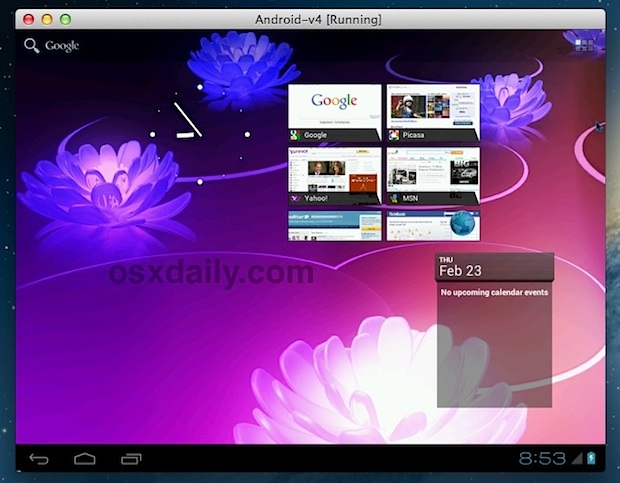
Run Android 4 ICS (Ice Cream Sandwich) on a Mac or PC with VirtualBox


Android 4 ICS VirtualBox
If you want to play around with Android 4 Ice Cream Sandwich (ICS) but don’t have an Android phone or tablet, you can download the official Android SDK, or better yet, grab a preconfigured virtual machine that will run ICS in VirtualBox. Other than providing an interesting look at the primary competitor to iOS, virtual machines are useful for compatibility testing, and developers and designers should find some value in adding an Android VM alongside their Windows & Internet Explorer VM’s, giving this some practical use beyond the novelty factor.
Here’s how to run Android 4 ICS in VirtualBox:
  • Download VirtualBox and install it (free)
  • Grab a preconfigured ICS set up from VMLite (free)
  • Uncompress the Android -v4.7z file, look for “Android-v4.vbox” and double-click it to load and boot the configuration into VirtualBox
  • At the boot menu in VirtualBox, select the lower “Android Startup from /dev/sda” option
  • Let Android ICS boot
That’s really all there is to it. The VMLite configuration is complete with mouse support and you’ll find the blue cursor as a replacement for a touch screen. You can switch to full screen mode by pulling down “View” and selecting “Switch to Fullscreen”, just remember to hit Command+F is how to exit out of that. Hitting Command+C will run the VM in scale mode, which is what the screenshots are showing.
I ran this in Mac OS X 10.7, but VirtualBox is offered for Windows and Linux as well so it should work just about anywhere you try it. You can alternatively grab a variety of different versions from Android x86, I was able to use the android-x86-4.0-eeepc-20120101.iso successfully as well and it has the added benefit of some gesture support, although the boot iso’s require a bit more configuration within VirtualBox to get going. As mentioned before, the Android SDK is also free to download and includes an emulator, but the VM setups are much easier to get working quickly.

You can drag widgets and app icons onto the home screen, some are interactive and overall the homescreen/desktop is very customizable as a result.

The Android web browser works fine too, this is potentially the most useful feature for web developers and designers since it allows to quickly check compatibility of sites and web apps.
If for some reason you want to run older versions of Android instead you can do that too, and don’t miss our other posts on virtual machines.

Sunday, 30 September 2012

Use android phone as modem for pc


USING GALAXY Y(ANDROID 2.3) AS PC MODEM


It is one of the most googled problems and i m posting the most simplest way.
Here is the easiest way to connect galaxy y as pc modem via USB
STEP 1>download n install EASY TETHER named app from andro. market(contact for pro version)
2>open the app, u will get link for its desktop client.
3>download n install the desktop client on ur pc(click on CREATE TRAY ICON when asked during installation process).
4>open EASY TETHER app on ur smartphone and tick on USB option.
5>now connect ur phone to pc via USB. right click on tray icon of desktop client and select CONNECT ANDROID in pop up menu.
THATS ALL…UR DONE!!
YOUR FEEDBACK IS MOST IMPORTANT. plz feel free to post your queries n feedback.

Download youtube videos easiest method

here is the simplest way to dowload youtube videos(no software download required, u will be done within a minute)
Step 1> open mozilla firefox..search google for FIREFOX ADDONS..select the url – addons.firefox.com(or u cn directly paste this url in ur address bar)
2>on the opened webpage search for FIREFOX ADDONS…a list of addons with details will appear..choose one of ur choice.
3>click on ADDTO FIREFOX…a dialogue box will appear..click on INSTALL NOW..it will b installed within seconds.
4>u will be asked to restart Firefox; do so.
5> open any youtube video with firefox… u will get a DOWNLOAD VIDEO button!!
NOTE:this method only works for firefox(may also work for IE)
enjoy downloading.
Tech. Is fun!!(:

Saturday, 29 September 2012

install windows on USB and carry in pocket

I am going to explain how to install Windows on a pen drive/usb..
this a very useful hack..u can carry and work in your customized window wherever u go..

Requirements to install Windows on USB:
# An USB flash drive with a minimum of 6 GB disk space to install Windows 7 or Vista. You can use a 4 GB drive to install XP.
# Bootable Windows 7 USB or DVD.
# Free time
So let’s begin with the installing Windows 7 on USB procedure:
1. First of all, connect your USB to the machine and backup all the data from the USB drive.
2. Download VirtualBox portable, double-click on the executable file and extract the contents to your USB.
install windows 7 on usb
3. Now, go to the VirtualBox portable folder in USB, and execute the Portable-VirtualBox (.exe) file.
4. From here onwards, you need to follow the onscreen procedure to create a virtual disk and install Windows 7 on USB. Follow the install Windows 7 on VirtualBox guide to complete the process.
5. Once you finish the installation process, you can safely close VirtualBox and remove your USB drive.
6. You can now use this Windows 7 USB drive on any Windows machine that you want. To use Windows 7 on other machine, connect the Windows 7 USB, open USB drive, and run portable-VirtualBox file.